Usage
1. Load a database
Enter the full path to your .sqlite file in the Database path field and click Load.
C:\path\to\database.sqlite
./data/my_db.sqlite
The app displays the available tables once the file is loaded successfully.
2. Select a table
Choose a table from the dropdown and click Load Table. The app shows:
- The list of column names and their types
- The total row count
- Populated filter field selectors ready for use
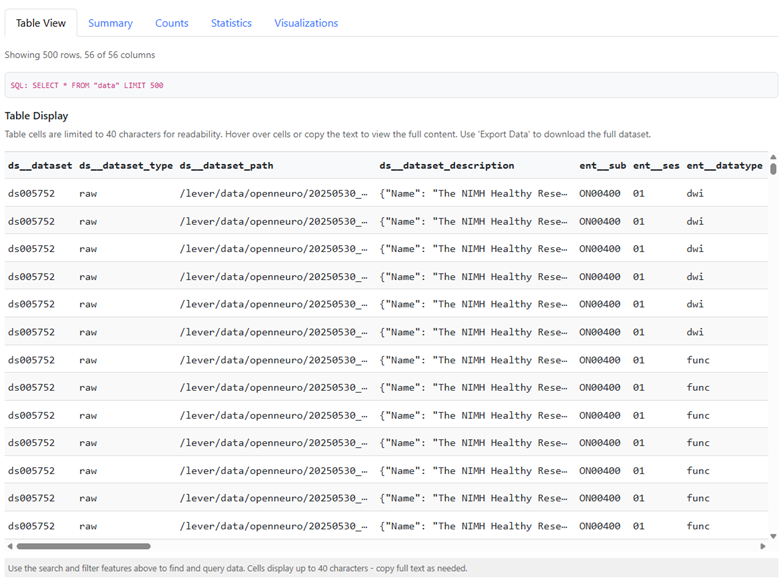
The first 500 rows also appear in the Table View tab, along with the SQL that produced them.
3. Filter with Advanced Search
The Advanced Search section lets you build multi-condition queries without writing SQL.
- Select a field (column name)
- Choose an operator (equals, contains, greater than, etc.)
- Enter a value — press Enter after typing a value manually
- Click + Add Filter to add another condition (all conditions are combined with AND)
- Click Apply Filters to run the query
For the full list of operators and examples see Advanced Usage.
4. Execute a custom SQL query (optional)
Use the Execute Custom Query section to write any SQL you need. Click Execute Query and results appear in the Table View tab along with the generated SQL for reference.
See Advanced Usage for example queries.
5. Choose columns to display (optional)
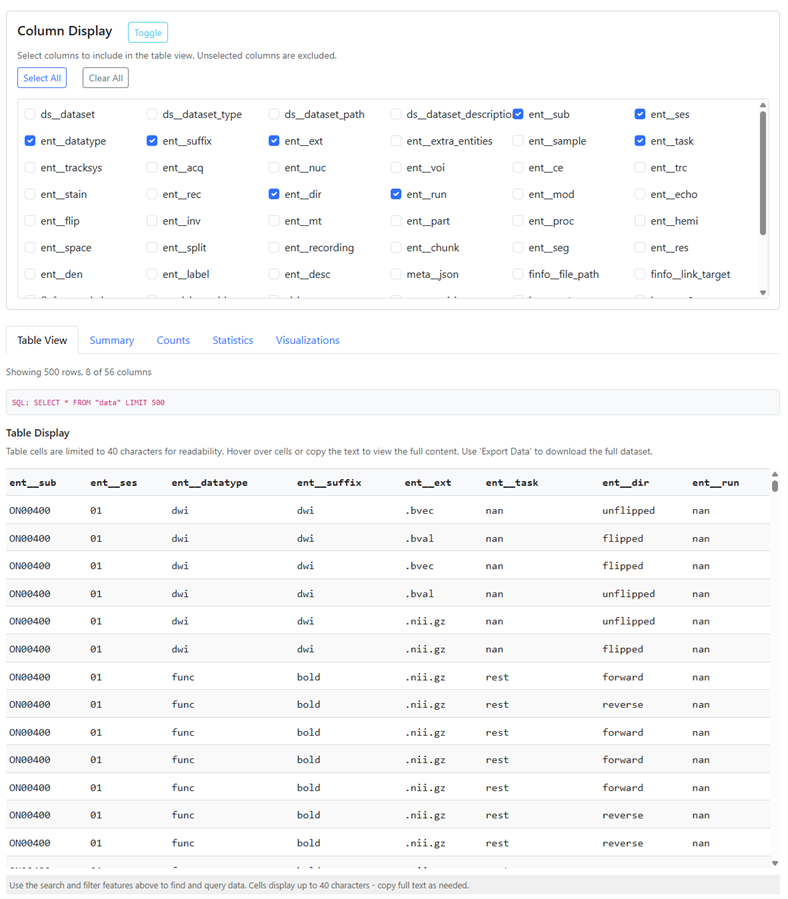
Click Toggle in the Column Display section to open the column checklist. Check the columns you want, or use Select All / Clear All. Unchecked columns are hidden from the table and left out of every analysis tab.
6. Analyze and explore
Switch between the Table View, Summary, Counts, Statistics, and Visualizations tabs to dig deeper into your data. See Exploring Results for what each tab shows.
7. Export results
Click Export to TSV to download your current filtered or queried results as a tab-separated file. The exported file includes the SQL query that produced it.
Exports reflect the active filters at the time of download, not the full table.